

Table of Contents
Tutoring in 2025 changed: students (and parents) expect lessons to be faster to prepare, more personalized, and more visual—without losing the human connection that makes tutoring work. That’s exactly where AI fits best: not as a replacement teacher, but as a behind-the-scenes assistant that helps you produce better materials, quicker explanations, and targeted practice—so you can spend more time doing what only a tutor can do.
And this isn’t theoretical anymore. In 2025, 54% of students and 53% of English language arts, math, and science teachers reported using AI for school, according to RAND. At the same time, Education Week reporting based on EdWeek Research Center survey data found that 61% of teachers used AI “at least a little” in their work in 2025—nearly doubling from 2023 levels.
That’s the opportunity for human-led AI tutoring: AI handles drafts and busywork; tutors handle diagnosis, motivation, and mastery. In this guide, you’ll get 9 practical AI tools—plus exactly how to use them for lessons, visuals, and presentations safely, with guardrails that keep learning focused and age-appropriate.
What Tutors Should Demand from AI Tools (Safety + Quality Checklist)
AI is now common in real learning workflows—RAND found that in 2025, 54% of students and 53% of ELA/math/science teachers reported using AI for school. When usage becomes “normal,” the differentiator isn’t who uses AI—it’s who uses it safely and responsibly.
Below is a practical checklist you can use before adding any AI tool into your tutoring routine—especially when working with minors:
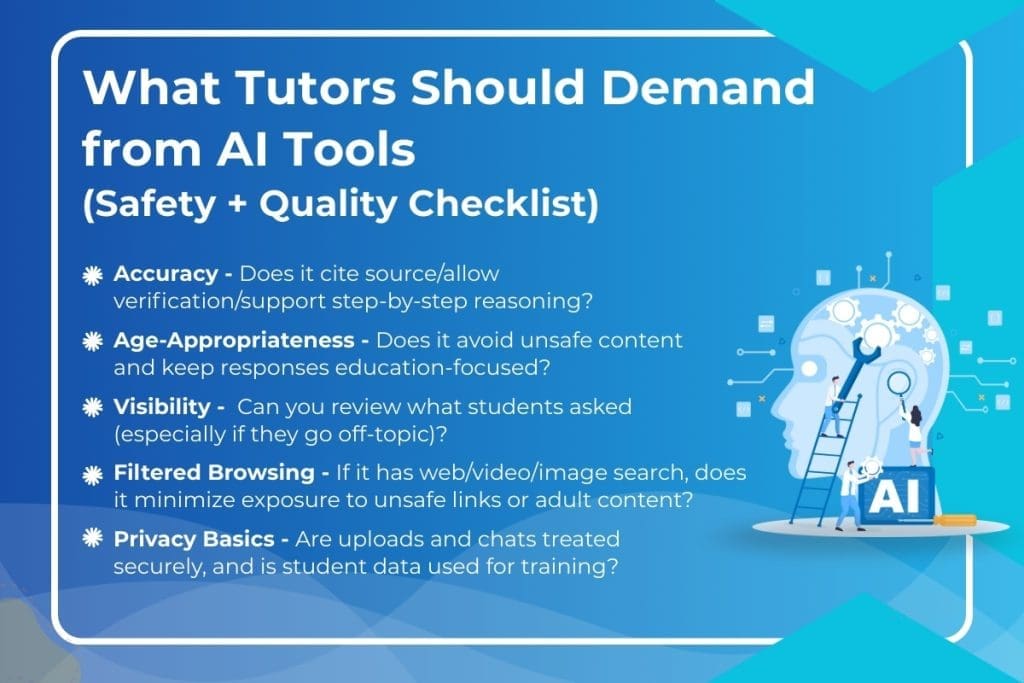
I. Accuracy: Can you verify what the tool produces?
What to look for
- Citations, links, or traceable sources (or at least the ability to add them)
- The ability to show step-by-step reasoning, worked examples, and assumptions
- Controls that let you request multiple solution methods (helps catch errors)
Quick test prompts
- “Show the steps and include checks for common mistakes.”
- “Cite 3 sources I can verify for this claim.”
- “Give two different methods and confirm they match.”
Green flag: The tool makes verification easy (sources, steps, alternate methods).
Red flag: Confident answers with no way to check them.
II. Age-Appropriateness: Does it stay educational and avoid unsafe content?
Tutoring tools should be designed to keep students in a learning lane, not an internet lane.
What to look for
- Strong safeguards against harmful, explicit, or off-topic content
- Responses that stay syllabus-aligned (especially for school-age learners)
- Clear refusal behavior plus “redirect to learning” responses
UNESCO’s guidance for genAI in education and research stresses a human-centered approach – keeping human agency, safety, and learner wellbeing at the center of GenAI use in education.
III. Visibility: Can you review what students asked?
A big part of safety is observability – not to punish curiosity, but to spot patterns early:
- Avoidance (“just give answers”)
- Distraction spirals
- Inappropriate or risky prompts
What to look for
- Tutor/parent-visible activity logs
- Flagging or alerts for off-topic or unsafe requests
- Summary views that help you coach habits (“Where did they get stuck?”)
Why it matters: If you can’t see what’s happening, you can’t guide it.
IV. Filtered Browsing: If it has web/video/image search, is it “student-safe” by default?
Tools that include search features should minimize the chance of students stumbling into:
- Adult content
- Unsafe links
- Misleading or low-quality sources
- Rabbit holes that derail study time
What to look for
- Filtered results and safer previews
- No open-ended browsing that sends students into unrelated tabs
- A strong focus on educational sources and study context
V. Privacy Basics: What Happens to Student Chats and Uploads?
Tutors should treat privacy as a first-class requirement – because tutoring often involves sensitive context (grades, learning gaps, sometimes personal details).
What to look for
- Clear statement about data handling (storage, encryption, retention)
- Whether user/student data is used to train models
- Whether you can delete content or control retention
OECD guidance on AI in education highlights privacy and data protection as core guardrails, especially when student data is involved.
Callout: A tutor’s job isn’t just teaching – it’s designing a safe learning environment.
The best AI tools don’t just generate content; they support human oversight, student safety, and responsible learning habits – which aligns with UNESCO’s human-centered framing for GenAI in education.
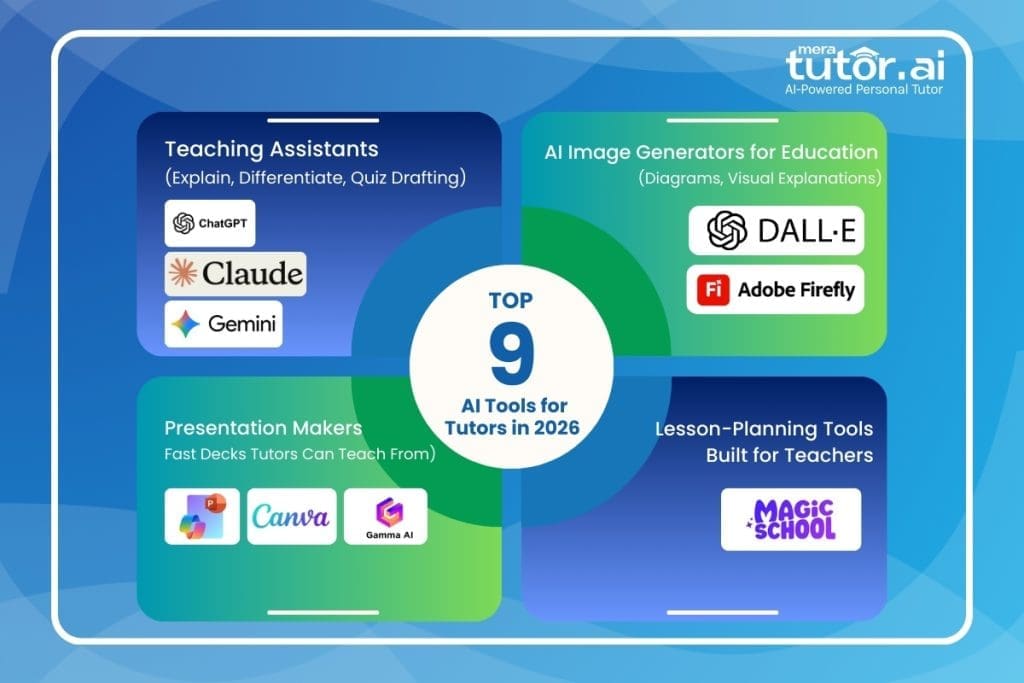
The Tutor’s Toolbox: 9 AI Tools Every Human Tutor Should Know (2026)
The tools below are grouped by what tutors actually do: explain, present, visualize, and plan. For each one, you’ll see Best for → Tutor use cases → Guardrails so you can adopt AI without giving up human control.
A) Teaching Assistants (Explain, Differentiate, Quiz Drafting)
Tool 1 – ChatGPT
Website – https://chatgpt.com/
Best for: Multiple explanations, analogy generation, practice questions + answer keys (fast drafts)
ChatGPT is best for quickly drafting multiple explanations, analogies, and practice sets so you can spend more time teaching than typing. It’s especially useful when you need three versions of the same idea—simple, standard, and exam-ready—on short notice.
Use it to generate misconception checks, Socratic question chains, and differentiated worksheets with answer keys. Guardrail: Treat outputs as drafts—verify solutions, align language to your syllabus, and adjust difficulty to the student in front of you.
Tutor use cases:
- “Explain this concept 3 ways” (story / analogy / exam-style)
- Misconception checks: “List the top 5 wrong answers students give—and why”
- Create “3 difficulty levels” of the same worksheet + answer key
Guardrails (Human-led):
- You verify solutions, tighten wording, and align to the syllabus
- Ask for “show steps” + “common mistakes” to reduce hidden errors
- Don’t paste sensitive student identifiers (names, phone numbers, addresses)
Tool 2 – Claude
Website – https://claude.ai/login
Best for: Long-form lesson docs, turning notes into structured worksheets, reading passages + questions (strong with long context)
Claude shines when you want to turn long notes into structured lesson materials like worksheets, reading passages, and question banks. It’s a strong choice for building coherent “teach sheets” from messy source content.
Use it to create comprehension sets (literal → inferential → evaluative), guided practice scripts, and recap handouts from a chapter or transcript. Guardrail: confirm factual accuracy and keep examples age-appropriate—especially when generating passages and scenarios.
Tutor use cases:
- Convert a chapter or PDF notes into: objectives → key points → examples → mini-quiz
- Generate reading comprehension passages with tiered questions (literal → inferential → critical)
- Produce lesson scripts (teacher talk + prompts + likely student responses)
Guardrails (Human-led):
- Confirm facts and calculations (especially in STEM)
- Keep outputs age-appropriate (you control tone, examples, and difficulty)
- Treat generated passages as drafts—scan for bias, complexity, and inaccuracies
Tool 3 – Google Gemini
Website – https://gemini.google.com/
Best for: multimodal support + Google ecosystem workflows (Docs/Slides-style planning; study guides/quizzes from uploaded notes)
Gemini fits tutors who plan lessons inside the Google ecosystem and want fast drafting for Docs- and Slides-style workflows. It’s handy for converting notes into organized study guides and practice questions.
Use it to outline lessons, refine explanations, and build quick quiz drafts you can paste into your existing materials. Guardrail: don’t paste sensitive student identifiers, and double-check any factual claims before you teach from them.
Tutor use cases:
- Turn lesson notes into a study guide + practice test/quiz
- Draft a lesson plan aligned to objectives and standards
- Quickly generate slide outlines and refine wording inside Slides-style workflows
Guardrails (Human-led):
- Don’t paste sensitive student identifiers
- Verify references and factual claims (especially when it “sounds” confident)
- Use it to draft structure; you decide pacing, questioning strategy, and checks for understanding
B) Presentation Makers (Fast Decks Tutors Can Teach From)
Tool 4 – Microsoft Copilot for PowerPoint
Website – https://support.microsoft.com/en-us/microsoft-365-copilot
Best for: turning outlines (or reference files) into slide decks, often with speaker notes
Copilot for PowerPoint helps you turn an outline into a teachable slide deck with structure and speaker notes. It’s ideal when you need a clear flow: concept → example → guided practice → quick check.
Use it to build mini-lesson decks, recap slides after a session, and exit-ticket slides that test understanding in minutes. Guardrail: review for accuracy and level—AI decks can look polished while still missing key steps or misconceptions.
Tutor use cases:
- “Mini-lesson deck + guided practice + exit ticket” in one flow
- Create a recap deck from a Word/PDF outline you already use
Guardrails (Human-led):
- You review for accuracy, level, and alignment (AI drafts ≠ final curriculum)
- Keep slides minimal; your questions and examples do the teaching
- Avoid putting private student data into prompts or uploaded references
Tool 5 – Canva
Website – https://www.canva.com/en/login/
Best for: clean visuals, classroom-friendly templates, printable worksheets + slides; AI can draft presentation designs fast (Magic Design for Presentations)
Canva is your go-to for clean, student-friendly visuals—slides, worksheets, posters, and recap cards that look consistent and readable. Its AI-assisted design features reduce formatting time so your attention stays on teaching.
Use it to create visual summaries, printable practice sheets, and slide templates that match your tutoring style. Guardrail: let AI handle layout, but you control pedagogy—questions, pacing, and the “checks for understanding” moments.
Tutor use cases:
- Convert a lesson outline into a polished deck students can actually follow
- Make matching worksheet + flashcard visuals with consistent style
- Design “one-page concept maps” for revision sessions
Guardrails (Human-led):
- Use AI for layout and visual clarity—you control pedagogy:
- Where you pause for questions
- What you ask students to predict
- How you check understanding
Tool 6 – Gamma (AI-first decks)
Website – https://gamma.app/
Best for: quick, structured decks for online tutoring and concept sprints; easy export/share workflows
Gamma is great for fast, structured decks that work well in online tutoring and short concept sprints. It’s designed for quickly generating a coherent narrative flow without spending an hour on slide formatting.
Use it to create 8–12 slide lessons that move from concept to example to practice to recap, then iterate between sessions as the student improves. Guardrail: watch for oversimplification—add your own prompts, pauses, and diagnostic questions.
Tutor use cases:
- Build an 8–12 slide “concept → example → practice → recap” flow fast
- Generate a micro-lesson deck that’s easy to iterate between sessions
- Export to formats you already use (PDF/PPT/Slides-style workflows)
Guardrails (Human-led):
- Treat decks as scaffolds, not scripts—add your questioning and feedback moments
- Check for oversimplification (AI decks can skip the “why” that students need)
C) AI Image Generators for Education (Diagrams, Visual Explanations)
Tool 7 – DALL·E
Website – https://openai.com/index/dall-e-3/
Best for: custom diagrams, concept visuals, “spot the error” images; strong prompt-following for education-style visuals
An image generator like DALL·E is powerful for creating custom diagrams and concept visuals when the textbook image doesn’t match your explanation. It’s also great for making “spot the error” graphics that turn passive viewing into active learning.
Use it for labeled science diagrams, math graphs, timelines, or scenario images for comprehension and speaking prompts. Guardrail: keep prompts explicitly educational and avoid realistic student likenesses—then verify the visual is scientifically or mathematically correct.
Tutor use cases:
- Labeled diagrams for science (“respiratory system with labels,” “water cycle flow”)
- “Spot the mistake” visuals (incorrect graph, mislabeled parts)
- Scenario images for comprehension prompts and speaking practice
Guardrails (Human-led):
- Avoid realistic student likenesses and personal images
- Keep prompts explicitly educational (“diagram,” “label,” “for grade X”)
- You validate correctness—AI can draw convincing but wrong diagrams
Tool 8 – Adobe Firefly
Website – https://www.adobe.com/in/products/firefly/landpa.html
Best for: safer creative workflows and editing-oriented generation; positioned around “commercially safe” creation and guardrails
Adobe Firefly is useful when you want education-friendly visuals plus editing-style workflows—icons, clean illustrations, and quick design assets that improve clarity. It’s well-suited for making worksheet visuals feel more professional without becoming distracting.
Use it to create headers, step icons, method cards, and simplified concept illustrations that support memory and structure. Guardrail: use visuals to reinforce explanation, not replace it—and keep content age-appropriate and non-identifying.
Tutor use cases:
- Worksheet headers, icons, and clean concept illustrations
- Visual cues for steps (“method cards,” “formula posters,” “process arrows”)
- Quick edits (background removal/cleanup) to make materials clearer
Guardrails (Human-led):
- Use it for supportive visuals—not as a substitute for explanation
- Standard safety rule still applies: no personal student likenesses, no identifying context
D) Lesson-Planning Tools Built for Teachers
Tool 9 – MagicSchool.ai
Website – https://www.magicschool.ai/
Best for: teacher workflow templates (lesson plans, rubrics, quizzes, differentiation supports); built as a toolkit for prep and planning
MagicSchool.ai is built for teacher-style workflows: lesson plans, rubrics, quizzes, and differentiated activities in a format educators recognize. It reduces the “blank page” problem when you’re building structured practice quickly.
Use it to generate leveled practice packs, rubric-based feedback comments, and lesson plan variations for different ability levels. Guardrail: customize everything to the syllabus and the learner—generic activities become high-impact only after tutor refinement.
Tutor use cases:
- Generate differentiated practice packs (basic / standard / challenge)
- Produce clear rubrics and feedback comments faster
- Draft standards-aligned lesson plans you can adapt to your student
Guardrails:
- You customize outputs to the learner (pace, misconceptions, examples, and priorities)
- Scan for generic “one-size-fits-all” activities and tighten to the syllabus and exam style
The “best teacher AI tools” aren’t the ones that do the most – they’re the ones that help you do more of what only humans do: diagnose misunderstandings, motivate learners, and choose the next best step.
How to Choose the Right Tool (Without Getting Overwhelmed)
The fastest way to pick an AI tool is to stop thinking in brands and start thinking in jobs. What do you need right now—an explanation, a visual, a deck to teach from, or practice material to measure progress? Once the job is clear, the tool choice becomes obvious.

Step 1 – Choose by Job-to-be-Done
- Explain (clarity + misconceptions) → use a teaching assistant
Best when you need alternate explanations, analogies, step-by-step solutions, or a quick quiz draft.
- Visualize (make it click) → use an image generator
Best for diagrams, concept visuals, and “spot the error” images that turn passive learning into active thinking.
- Teach live/online (structure + flow) → use a presentation maker
Best for building a clear sequence: concept → example → practice → recap—without spending an hour formatting.
- Practice/assessment (measure + improve) → use a teacher workflow tool
Best for differentiated practice packs, rubrics, and feedback templates you can reuse across students.
Step 2 – Choose by Constraint
Once you’ve picked the category, decide based on what you’re optimizing for:
- Time (fastest): when you need a draft in minutes and you’ll refine it yourself
- Polish (best output): when you need student-ready visuals or professional-looking materials
- Control (most editable): when you want to tweak every step, question, and example to match the learner
Step 3 – Budget Rule that Prevents Tool Overload
Start simple: one tool per category (assistant + slides + visuals + planning). Use it until you hit a real limit—like formatting friction, missing features, or quality issues—then upgrade intentionally. Most tutors don’t need nine subscriptions; they need one reliable “stack” that supports human-led teaching.
Tutor Workflows That Keep the Human in Charge
AI becomes genuinely useful when it’s part of a repeatable tutoring system—one where the tutor sets the goal, checks the work, and decides the next move. These workflows are designed to keep you firmly in charge while AI accelerates prep and practice.
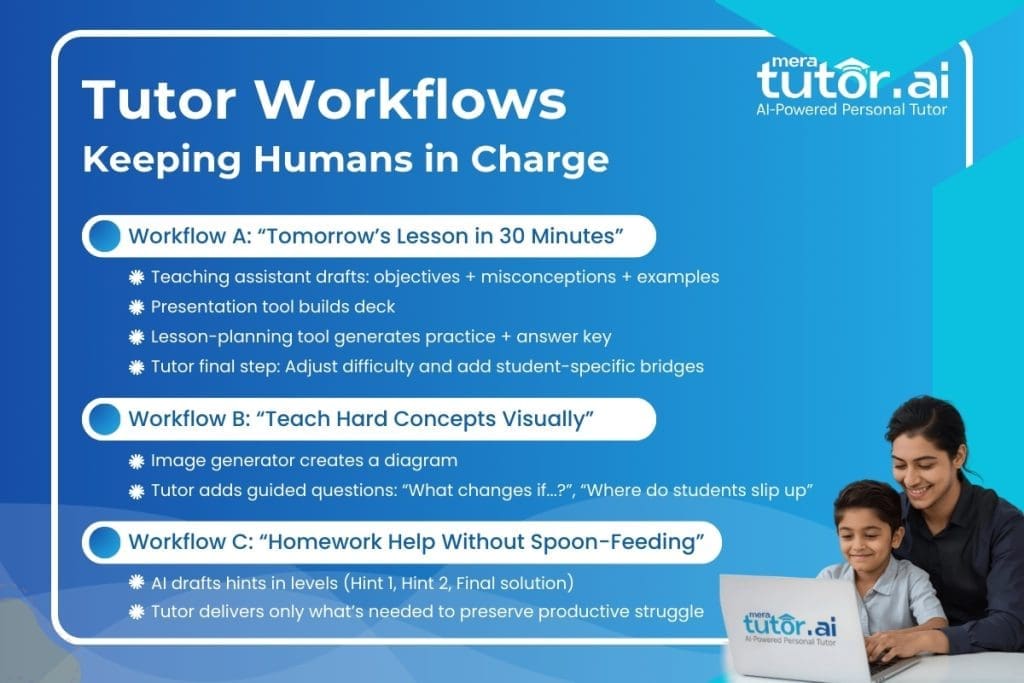
Workflow A: “Tomorrow’s Lesson in 30 Minutes”
Best for: Last-minute session prep that still feels structured and personalized.
- Teaching assistant drafts the teaching core (5–10 min)
Ask for: learning objectives, prerequisite knowledge, the top misconceptions, and 2–3 worked examples.
Prompt idea: “Create objectives + 5 misconceptions + 3 examples + quick checks for [topic], grade [X].”
- Presentation maker builds your session flow (10 min)
Turn the outline into a short deck: concept → example → guided practice → recap → exit ticket.
Keep it light: minimal text, high clarity—your teaching does the heavy lifting.
- Lesson-planning tool generates practice + answer key (5–8 min)
Create a mixed set (easy/medium/hard), include marking scheme, and list common wrong turns.
- Tutor final step: personalize (5–7 min)
Adjust difficulty and add student-specific bridges:
- Connect to what they struggled with last time
- Add one familiar example (their interests, syllabus chapter, exam pattern)
- Choose 1–2 diagnostic questions to confirm understanding early
Why this stays human-led: AI drafts materials; you decide sequencing, emphasis, and what success looks like.
Workflow B: “Teach Hard Concepts Visually”
Best for: abstract topics students “know” but don’t truly understand (fractions, graphs, forces, grammar rules, essay structure).
- Image generator creates a targeted diagram (2–5 min)
Generate a clear visual (labeled diagram, step-by-step process, before/after comparison, or “spot the error” image).
Prompt idea: “Create a clean labeled diagram of [concept] for grade [X], with 4–6 labels.”
- Tutor adds guided questions (10–15 min)
Use the visual to drive thinking, not just viewing:
- “What changes if we double ___?”
- “Which label would you move—and why?”
- “Where do students usually slip up here?”
- “Predict the outcome before we calculate it.”
- Quick accuracy check (1–2 min)
Verify the diagram matches correct definitions and units. If needed, regenerate with corrections.
Why this stays human-led: The diagram is a prop; your questioning builds understanding.
Workflow C: “Homework Help Without Spoon-Feeding”
Best for: students who ask for answers but need skills—especially in math, science, and writing.
- AI drafts hints in levels (3–5 min)
Generate a scaffolded support ladder:
- Hint 1: nudge toward the first step (no formulas revealed)
- Hint 2: show the method or setup (partial working)
- Final: full solution with explanation + a “why this works” note
Prompt idea: “Give Hint 1, Hint 2, and final solution for this problem. Keep Hint 1 minimal and don’t reveal the answer.”
- Tutor delivers only what’s needed (live, adaptive)
Start with Hint 1. If they’re stuck, move to Hint 2. Only show the final solution after they attempt a step.
- Lock in learning (2–5 min)
End with one transfer question: “Same concept, new numbers.”
Ask for a short self-explanation: “Explain the method in 2 sentences.”
Why this stays human-led: You control pacing and struggle—AI simply supplies the scaffolding ladder.
Where MeraTutor.AI Fits (Safety-First Support Between Sessions)
If your tutoring sessions are the “high-touch” part of learning, the risky part often happens between sessions—when students study alone, click around, and ask tools questions without guidance. MeraTutor.AI is one example of a platform trying to solve that gap by packaging AI help inside a more student-safe, study-focused environment rather than an open-ended chatbot experience.
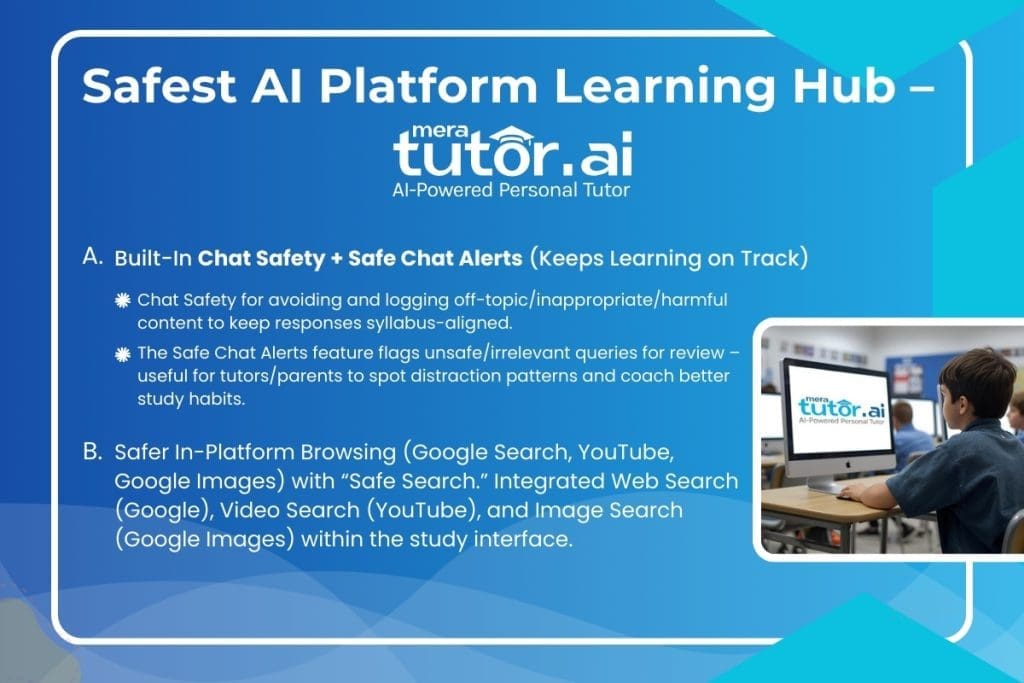
A) Built-In Chat Safety + Safe Chat Alerts (Keeps learning on track)
MeraTutor.AI describes its Chat Safety as keeping the experience age-appropriate by training the AI to avoid and log off-topic, inappropriate, or harmful content—so students receive educational, syllabus-aligned responses.
It also references Safe Chat Alerts that flag problematic or irrelevant queries for review. Practically, this can help tutors (and parents) spot patterns—distraction, avoidance, or repeated boundary-testing—and turn them into coaching moments about focus and study habits.
B) Safer In-Platform Browsing (Web, YouTube, Images) with “Safe Search”
MeraTutor.AI promotes integrated Web Search, plus Video Search (YouTube) and Image Search (Google Images) inside the study interface—aimed at keeping exploration within a learning context rather than sending students into open tabs.
Its product materials explicitly describe “safe image and video search inside the platform,” and the FAQ highlights “filtered content” and “no access to unsafe links or ads.” A careful way to say it: the platform positions these searches as filtered and student-safe to reduce exposure to inappropriate content (instead of the unpredictability of open browsing).
C) How Tutors Can Use It (Light-Touch Examples)
- Assign between-session practice in a safer environment: students revise from their materials, ask questions, and stay anchored to study goals.
- Use Safe Chat Alerts as coaching input: “What were you trying to do?” “What’s the learning version of that question?”—then redirect into syllabus-aligned practice.
- Keep open-web rabbit holes out of the workflow: Encourage research through filtered, in-platform search when appropriate—then discuss findings in the next session with your guidance.
Responsible AI Tutoring Guardrails (Quick, Practical)
The goal isn’t to use more AI—it’s to use AI in a way that protects learners and improves outcomes. These guardrails keep tutoring trustworthy, human-led, and effective.

1. Verify Solutions and Sources
AI can sound certain while being wrong, especially on edge cases, word problems, and anything that requires careful assumptions. Treat outputs as drafts: check the final answer, check the steps, and check the source before you teach from it. When possible, ask for two methods that must match (e.g., algebraic + graphical) and request citations you can verify.
2. Protect Privacy by Default
Tutoring often includes sensitive context—performance, learning gaps, even personal details—so don’t paste identifying student info into prompts or uploads unless the tool is explicitly designed for that use case. Use anonymized examples (“Student A,” “Grade 8 learner”), keep documents limited to what’s necessary, and prefer platforms that clearly explain how chats/uploads are stored and whether data is used for training.
3. Design for Learning, Not Just Answers
Use AI to generate materials that strengthen memory and understanding:
- Retrieval practice: short quizzes, flashcards, “explain it back” prompts
- Spaced repetition: review schedules and mixed-topic practice sets
- Self-explanation: “Why does this step work?” “What would change if…?”
AI can generate endless content, but learning happens when students recall, explain, and apply—with your guidance.
4. Safety-First Defaults for Minors
When working with younger learners, choose tools that reduce risk by design: filtered browsing, monitoring/visibility, and clear boundaries that keep outputs age-appropriate and study-focused. This aligns with UNESCO’s human-centered approach to generative AI in education—where human oversight, learner wellbeing, and responsible governance stay central.
Conclusion
AI can absolutely upgrade tutoring—faster prep, clearer visuals, and more practice material in less time. But the part that actually moves students forward still comes from a human tutor: spotting misconceptions, asking the right follow-up question, adapting the pace, and building confidence when learning feels hard.
If you’re getting started, keep it simple with a starter stack—one reliable tool per job:
- 1 teaching assistant (explanations, examples, quiz drafts)
- 1 presentation maker (teach-from decks and recap slides)
- 1 image tool (diagrams and visual explanations)
- 1 teacher workflow tool (practice packs, rubrics, feedback)
Once that stack feels natural, add tools only when you hit real limits—don’t collect subscriptions you won’t use. Let AI do the drafting—so you can focus on the actual teaching.
FAQs
1. What are the best AI tools for tutors to use in 2026?
The best ai tools for tutors fall into four jobs: a teaching assistant (explanations + quizzes), a presentation maker (teach-from decks), an image generator (diagrams), and a teacher workflow tool (lesson plans + rubrics). Pick tools that save prep time while still letting you verify accuracy and tailor to the student.
2. What are the best AI teaching tools for creating lesson plans and differentiated practice?
The best ai teaching tools for planning are the ones built around teacher workflows: lesson objectives, accommodations, leveled practice sets, and rubrics. They’re ideal ai tools for lessons because they generate repeatable templates you can quickly customize to a syllabus and a learner’s gaps.
3. What are the best AI tools for creating presentations (online presentation makers for teachers)?
For tutors, the best teacher AI tools for slides are presentation makers that turn an outline into a clear flow: concept → example → guided practice → recap. Popular options include Microsoft PowerPoint tools and Canva—use them for structure and visuals, then add your own questions and checkpoints to make the lesson human-led.
4. Which AI image generators for education are useful for tutoring?
The most useful ai image generators education workflows create simple diagrams, labeled visuals, and “spot-the-error” images that make misconceptions visible. Keep prompts explicitly academic (grade level + topic + labels), and always verify the diagram is correct before using it in a lesson.
5. How can tutors use AI tools for lessons without replacing themselves?
Use AI for drafts: first-pass explanations, examples, practice questions, or slide structure—then you do the real tutoring work: diagnosing misconceptions, choosing the next step, and coaching confidence. In other words: AI accelerates preparation; the tutor drives understanding and mastery.
6. Is MeraTutor.AI safe for students, and how does it support human-led tutoring?
MeraTutor.AI positions itself as a safety-first learning hub with features like Safe Chat Alerts and filtered in-platform search to keep study sessions age-appropriate and focused. If you want a controlled environment between sessions, safety-oriented platforms like this can reduce off-topic drift and keep learning aligned to coursework.
7. What privacy rules should tutors follow when using AI teaching tools?
Treat privacy as a default: don’t paste identifying student details into prompts, avoid uploading sensitive documents unless necessary, and prefer tools with clear data handling policies. If you use assistants from OpenAI, Anthropic, or Google, keep inputs minimal, anonymize examples, and store your final tutor-ready materials in your own secure system.
Try a Safer, Human-Led AI Study Flow
If you want students to keep learning between sessions without drifting into off-topic chats or unsafe browsing, set them up with a study environment that’s designed for focus and age-appropriate support. A safety-first workflow helps you protect attention, reinforce boundaries, and make independent practice more productive.

MeraTutor.AI is one example of a platform built around those guardrails—such as Safe Chat Alerts and filtered in-platform search—so students can get help while you stay in control of the learning journey.
Sign Up Now
